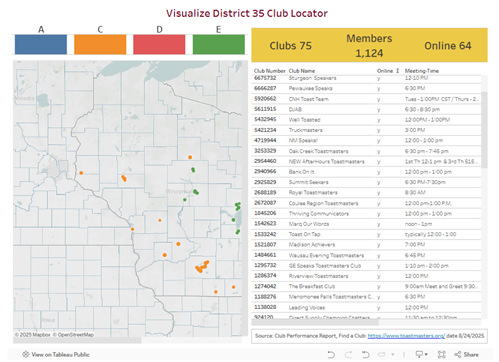
The initial view of this visualization shows a map of Wisconsin, all the Divisions, and a table listing all the clubs.
Please note, whatever else you do you can get back to this view by reloading the page
General advice
If you do a selection of an item (e.g. One of the Divisions) you can always undo it by clicking it again.
There are scroll bars on the bottom and right side of the map and the table if you want to pan on the map or move up and down on the table.
Click on Table
If you click on the table it will select a particular club on the map. The selected item in the table will be highlighted in blue.
To unselect the club click the row in the table again.
Sorting Items on the Table
Initially items will be organized in the table by descending club number. Depending on the size of your window, you may have to scroll the table at the bottom and the sides to see all the information.
To organize by Club Name hover over the Club Name Column and click the little A to Z item:
You can organize other columns using a similar approach
For numeric items (Members, Club Number) you will have to click on the descending/ascending symbol:
Hover Over Club On Map
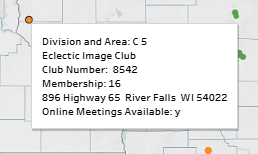
If you hover over a club point on the map you will see the Division, Area, Club Name, Club Number, Membership, Address, and Online meeting availability.
Hovering (place the mouse over a point on the map without clicking) is a good way to quickly look at the information for multiple clubs.
Click on Club on Map
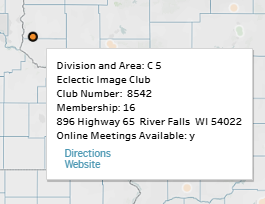
If you click on a club point it will select that club and it may return some additional information: Directions and Website. The directions are Google Directions from your current location.
To unselect the point click on it again.
Division Selection
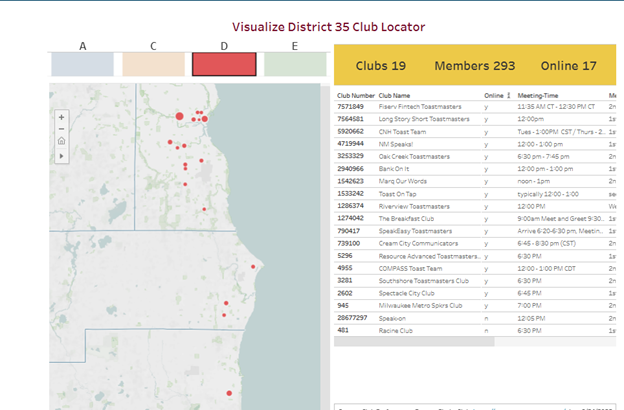
If you click on a Division on the Top it will select only those clubs in that Division in the Map and Table.
If you click in the table on a particular club only that club in the selected Division will be shown on the map.
Optional Tools and Controls
If you have a mouse with a scroll wheel you can use is to Zoom in and Zoom out in the map
If you double click on the map it will Zoom you in
The home button on the map brings you back to the original map extent (all of the D35 area). Please note, this is not the same as refreshing the page. All your existing selections will still be in place
The map has other controls
Geographical Search: Magnifying Glass Symbol
You can use this to enter a particular city or geographical location and zoom to it (e.g. Madison, Wisconsin, Door County)